
System Settings → Application Settings
Many of the settings that control the behavior of Keyfactor Command features are configurable from the Applications Settings on the System setting menu.The tables below provide a brief description of these settings.
Each tab of the Applications Settings page is organized into sections—a General section and additional sections based on the functionality controlled by each tab. Click the plus ( /
/ ) next to a section to toggle expand/collapse that section.
Depending on your Keyfactor Command license, not all application settings may be applicable in your environment.
 Application Settings: Console Tab
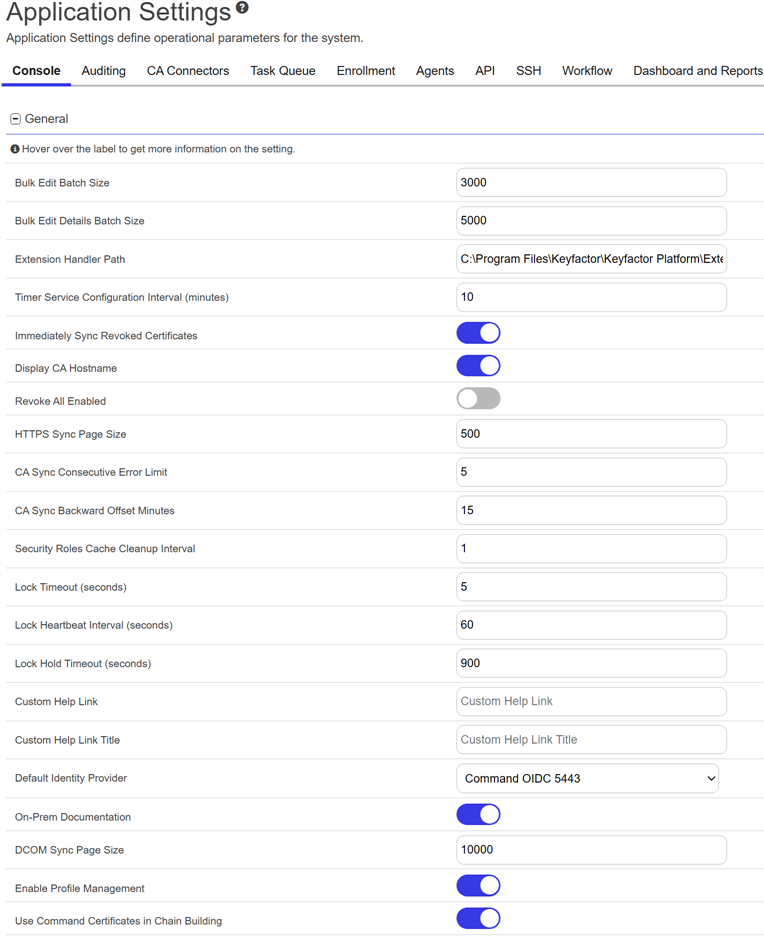
Figure 406: Console Application Settings: General
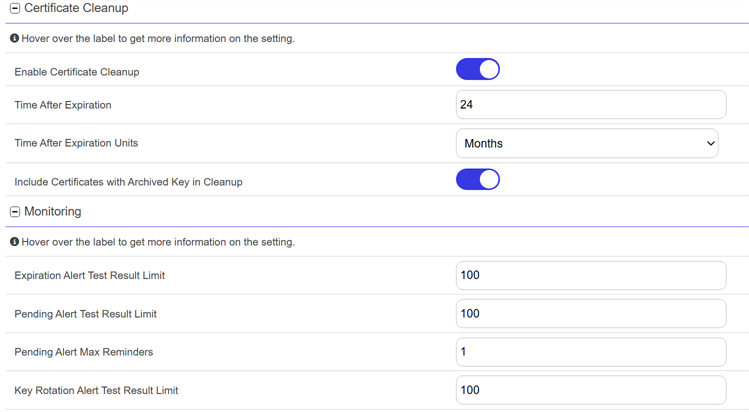
Figure 407: Console Application Settings: Certificate Cleanup and Monitoring
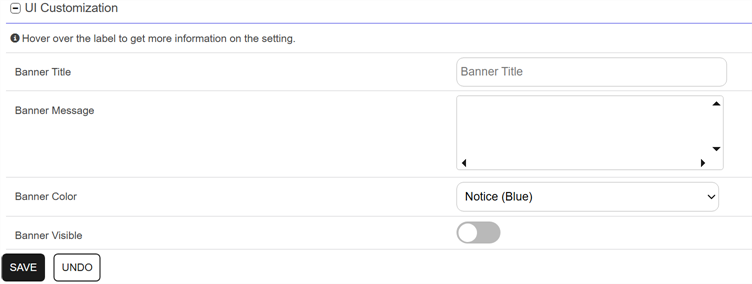
Figure 408: Console Application Settings: UI Customizations
Table 32: Console Application Settings
|
Tab |
Section |
Field |
Description |
|---|---|---|---|
| Console | Certificate Cleanup | Include Certificates with Archived Key in Cleanup |
When turned on, certificates with a private key stored in the system are eligible for removal. The default is off. Important: If a certificate with a stored private key is deleted and later restored, the stored private key will not be restored.
|
| Console | Certificate Cleanup | Enable Certificate Cleanup |
When turned on, the periodic cleanup job to remove expired certificates from the Keyfactor Command database. The task runs daily at 1:00 UTC. The default is off. For more information, see Certificate Cleanup. Certificate cleanup settings can be configured at three levels:
|
| Console | Certificate Cleanup | Time After Expiration |
The amount of time after expiration to wait until the certificate is eligible for removal. Select the units for the time with Time After Expiration Units. The default is 24. |
| Console | Certificate Cleanup | Time After Expiration Units |
The time unit to apply to the expiration time. Options are days, weeks, or months. The default is months. |
|
Console |
General |
Bulk Edit Batch Size |
The number of certificates at a time that are saved to the database when using the Edit All feature to edit certificate metadata. This setting can be adjusted if there are responsiveness issues when editing large numbers of certificates at once. The default is 3000. |
|
Console |
General |
Bulk Edit Details Batch Size |
The number of certificates at a time that are read from the database when using the Edit All feature to edit certificate metadata. This setting can be adjusted if there are responsiveness issues when editing large numbers of certificates at once. The default is 5000. |
| Console | General | CA Sync Backward Offset Minutes |
The number of minutes to offset when determining whether a certificate requested outside of Keyfactor Command should be included in an incremental synchronization. Adjusting this value can be helpful in situations of extreme clock skew or when the EJBCA Validity Offset setting is turned on. Note: For EJBCA CAs, if the certificate profile has a Validity Offset configured to a value greater than the value configured in the CA Sync Backward Offset Minutes application setting (15 minutes by default), certificates requested outside of Keyfactor Command will not be picked up on incremental scans. These certificates will only appear in Keyfactor Command on a full synchronization. The CA Sync Backward Offset Minutes application setting should be set to the same number of minutes as the Validity Offset value, if Validity Offset is configured.
Figure 409: EJBCA Certificate Profile Validity Offset Greater than 15 Minutes |
| Console | General | CA Sync Consecutive Error Limit | The number of errors a CA synchronization can encounter before the synchronization job stops (without running to completion). |
| Console | General | Custom Help Link |
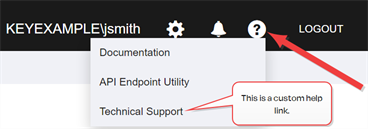
The URL to a page to which users may be directed when they click on the custom help link from the help dropdown in the Keyfactor Command Management Portal. Keyfactor strongly urges caution when using this feature and confirming that the link to which users are redirected is thoroughly secured. For security, the user will receive a warning they will need to acknowledge to proceed. For visibility, the warning will display the domain the link is directed to.
Figure 410: Custom Help Link |
| Console | General | Custom Help Link Title | The title text of the custom help link that appears on the help dropdown in the Keyfactor Command Management Portal. |
| Console | General | DCOM Sync Page Size |
The number of records at a time that are read from a DCOM CA during a CA synchronization job. The default is 10,000. |
| Console | General | Default Identity Provider |
The identity provider to which the user’s logon request will be directed by default if an identity provider is not specified in the URL. This value is only relevant in environments using OAuth as an identity provider with more than one identity provider. In such environments, you can specify the identity provider to use for authentication in the URL using an identity provider hint (where IDP_NAME is the authentication scheme of the selected identity provider): https://KEYFACTOR_SERVER_FQDN/KeyfactorPortal/Login/Signin?idpHint=IDP_NAME
Note: The identity providers that appear in this dropdown are determined by the permissions of the user accessing the Management Portal and the permission set on the identity providers. The user must be assigned a security role that has been granted the Identity Providers > Read permission and that security role must have the same permission set applied to it as has been applied to the identity provider. For more information about permission sets, see Permission Sets.
|
|
Console |
General |
Display CA Hostname |
If turned on, causes both the CA’s FQDN and logical name (for example, ca2.keyexample.com\Corp Issuing CA Two) to display in the CA fields on the Certificate Authority and Certificate Requests pages of the Management Portal. If turned off, only the CA’s logical name (for example, Corp Issuing CA Two) displays on these pages. The default is off. |
| Console | General | Enable Profile Management |
If turned on, elements for creating and editing certificate templates and template custom extensions are visible in the Management Portal. If turned off, these elements are hidden. The default is on. |
|
Console |
General |
Extension Handler Path |
The path to the location on the Keyfactor Command server where the event handler .dll files are stored. Event handler files are stored by default in: C:\Program Files\Keyfactor\Keyfactor Platform\ExtensionLibrary\
|
| Console | General | HTTPS Sync Page Size |
The number of records at a time that are read from an HTTPS CA during a CA synchronization job. The default is 500. Note: This value needs to be set less than or equal to the Maximum Query Count in you EJBCA instance. Find this in the EJBCA configuration under System Configuration → System Configuration → Basic Configurations in the Database Configuration section. If you have more than one EJBCA instance communicating with Keyfactor Command, this value needs to be less than or equal to the lowest Maximum Query Count of those EJBCA instances.
Note: This setting was known as CA Sync Page Size in previous versions of Keyfactor Command.
|
|
Console |
General |
Immediately Sync Revoked Certificates |
If turned On, causes certificates to immediately sync to Keyfactor Command upon revocation rather than waiting for the next scheduled synchronization cycle. The default is on. |
|
Console |
General |
Lock Heartbeat Interval (seconds) |
How often to update the lock to keep it alive while running a long running timer service job. The default is 60. |
|
Console |
General |
Lock Hold Timeout (seconds) |
How long to wait after the last successful heartbeat interval before the lock is considered to be lost and can be acquired by another machine. The default is 900. |
|
Console |
General |
Lock Timeout (seconds) |
The amount of time to attempt to acquire a lock ensuring that only one timer service job runs at a time across multiple servers. The default is 5. |
|
Console |
General |
On-Prem Documentation |
Specifies which documentation set opens from the Keyfactor Command Management Portal help links, either the On-Premises documentation or the Managed Services documentation. If turned on, any help links will access On-Premises Documentation website. If turned off, any help links will access the Managed Services Documentation Suite website. The default is on. Note: Clear the browser cache to access the updated documentation link.
|
| Console | General | Publicly Trusted Roots Bundle Name |
Specifies the name of the trust bundle that is used for the automated task to import CA root certificates from the Keyfactor Command system's root certificate store. The default is Publicly Trusted Roots. |
|
Console |
General |
Revoke All Enabled |
If turned on, causes the Revoke All button to appear at the top of certificate search and collection grids to allow users with appropriate permissions to revoke all certificates shown in the grid or included in the certificate collection. If turned off, hides the Revoke All button and turns off functionality of the POST /Certificates/RevokeAll API endpoint. The default is off for new installations of Keyfactor Command beginning with release 10.4. |
| Console | General | Security Roles Cache Cleanup Interval |
The number of minutes between checks for security role changes that require the security role cache to be refreshed before its normal expiration period. Keyfactor Command caches security role and membership information on the server to improve performance when evaluating permissions. If a security role is modified after it is added to the cache, the cleanup job clears the affected cached entries so updated role information can be used without waiting for the normal cache expiration period. The default is 1. |
| Console | General | Timer Service Configuration Interval (minutes) | The number of minutes between executions of the Keyfactor Command Service job to check for new or updated service job task schedules. |
|
Console |
Monitoring |
Expiration Alert Test Result Limit |
The maximum number of expiration alert emails that will be sent when an expiration alert test is run from within the Management Portal. If the number set here is exceeded during a test, emails will not be sent, but a portion of the alerts will be visible on the expiration alerts test page (see Test Expiration Alerts). The default is 100. |
| Console | Monitoring | Key Rotation Alert Test Result Limit |
The maximum number of key rotation alert emails that will be sent when a key rotation alert test is run from within the Management Portal. If the number set here is exceeded during a test, emails will not be sent, but a portion of the alerts will be visible on the key rotation alerts test page (see Testing Key Rotation Alerts). The default is 100. |
|
Console |
Monitoring |
Pending Alert Test Result Limit |
The maximum number of pending alert emails that will be sent when a pending alert test is run from within the Management Portal. If the number set here is exceeded during a test, emails will not be sent, but a portion of the alerts will be visible on the pending alerts test page (see Testing Pending Request Alerts). The default is 100. |
|
Console |
Monitoring |
Pending Alerts Max Reminders |
The maximum number of pending alert emails that will be sent for a given pending certificate. Every time a pending alert task is run, an email will be sent for a given pending certificate until the limit is reached. The default is 1. Keyfactor recommends keeping the number at 5 or less. |
| Console | UI Customization | Banner Color |
The background color for the banner. There are 3 options to choose from:
|
| Console | UI Customization | Banner Message | The message of the banner. |
| Console | UI Customization | Banner Title | The title of the banner, with a maximum length of 75 characters. |
| Console | UI Customization | Banner Visible |
If turned on, the banner appears on every page in Keyfactor Command. If turned off, the banner will not be visible on any page. Note: Clear the browser cache to see the updated banner.
|

Application Settings: Auditing Tab
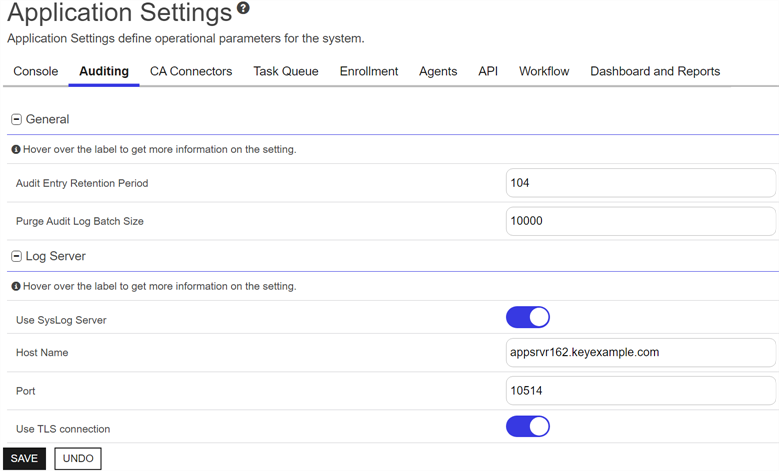
Figure 411: Audit Log Application Settings
Table 33: Audit Log Application Settings
|
Tab |
Section |
Field |
Description |
|---|---|---|---|
|
Auditing |
General |
Audit Entry Retention Period |
The number of weeks to retain the audit log entry details. The default for new installs is 52. Configuration wizard files from existing databases will not be populate this field upon upgrade to prevent changing the retention period to an potentially unwanted setting. Note: The audit log cleanup job runs once daily and removes any audit log entries older than the time specified in the retention parameter except those in the following protected categories:
Audit logs belonging to protected categories are retained indefinitely and cannot be deleted. To retain all audit log entries indefinitely, turn off the job. |
|
Auditing |
General |
Purge Audit Log Batch Size |
Records are deleted in batches. The number of records in a batch can be configured with this setting. The default is 10,000. |
|
Auditing |
Log Server |
Host Name |
The host name of the centralized logging server to receive the Keyfactor Command audit log entries. |
| Auditing | Log Server | Port |
The port to connect to the centralized logging server. The default is 514. |
| Auditing | Log Server | Use SysLog Server | If turned on, enables sending audit log details to a centralized logging server. |
| Auditing | Log Server | Use TLS Connection | If turned on, enables sending audit log details to a centralized logging server over a TLS connection. |
Application Settings: CA Connectors Tab

Figure 412: CA Connectors Application Settings
Table 34: CA Connectors Application Settings
|
Tab |
Section |
Field |
Description |
|---|---|---|---|
|
CA Connectors |
General |
AuthZ Cache Expiration (minutes) |
The lifetime, in minutes, of the authorization cache entries for the CA connector. The authorization cache is used to reduce database queries when authorization decisions are made during CA connector communications with Keyfactor Command. The default is 5. |
|
CA Connectors |
General |
Heartbeat Interval (minutes) |
The frequency, in minutes, with which a CA connector should query the Keyfactor Command server for a status on the accuracy of its jobs list. The default is 5. |
Application Settings: Task Queue Tab
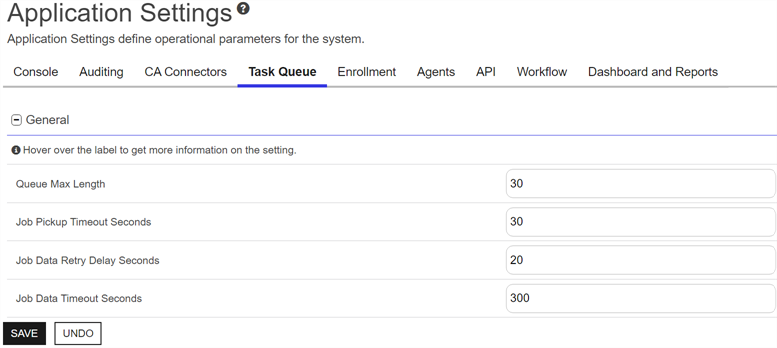
Figure 413: Task Queue Application Settings
Table 35: Task Queue Application Settings
|
Tab |
Section |
Field |
Description |
|---|---|---|---|
|
Task Queue |
General |
Job Data Retry Delay Seconds |
The number of seconds the CA connector should wait before trying to resubmit job data. This may need to be adjusted for streaming jobs where the queue fills up because the publisher is too far ahead of the consumer. The default is 20. |
|
Task Queue |
General |
Job Data Timeout Seconds |
The number of seconds to wait for a job data response message before timeout. The job will not be retried. The default is 300. |
|
Task Queue |
General |
Job Pickup Timeout Seconds |
The number of seconds to wait before a job start message times out and the next CA connector (if any) is tried. The default is 30. |
|
Task Queue |
General |
Queue Max Length |
The maximum queue length for streaming tasks. The default is 30. |
Application Settings: Enrollment Tab
Certificate enrollment refers to the process by which a user requests a digital certificate. The user must submit the request to a certificate authority (CA). that were previously configured under application settings are now configured on the enrollment patterns page (see Regular Expressions).
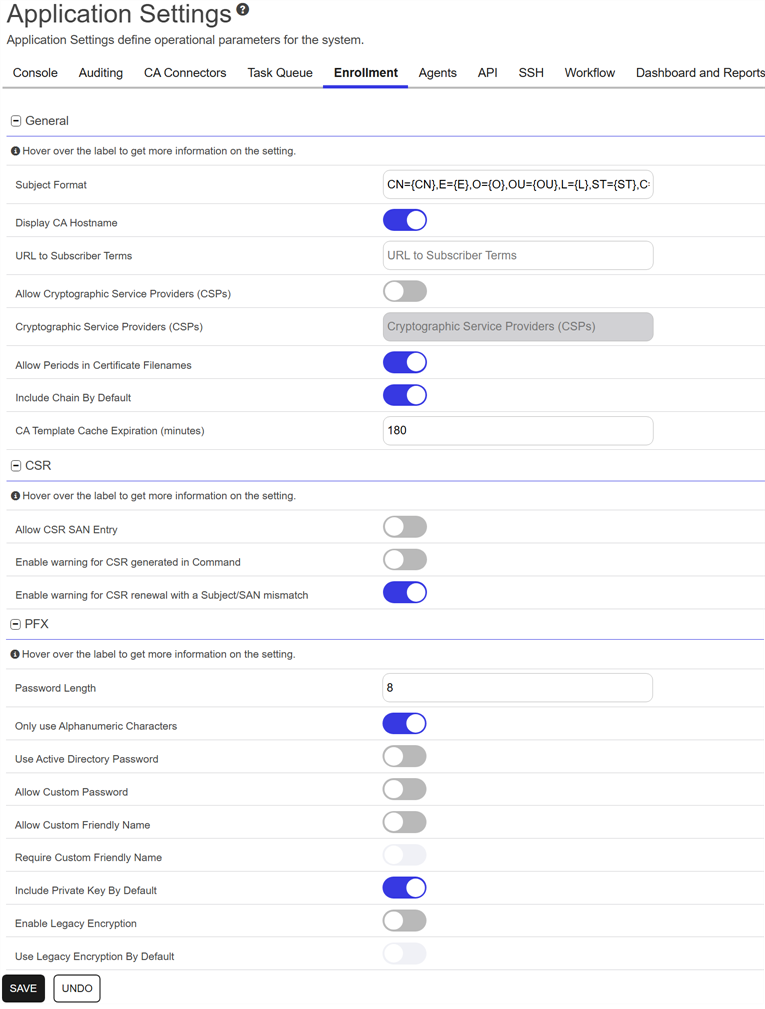
Figure 414: Enrollment Application Settings
Table 36: Enrollment Application Settings
|
Tab |
Section |
Field |
Description |
|---|---|---|---|
| Enrollment |
CSR |
Allow CSR SAN Entry |
This application setting was removed in Keyfactor Command version 26.2.1. It has been replaced by a Policies setting on Enrollment Patterns called CSR Enrollment External SAN Handling (see Enrollment Pattern: Policies Tab or System-Wide: Policies Tab). |
| Enrollment | CSR | Enable warning for CSR generated in Command |
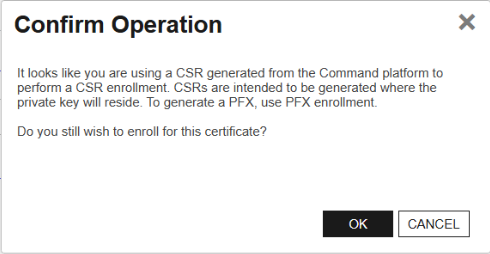
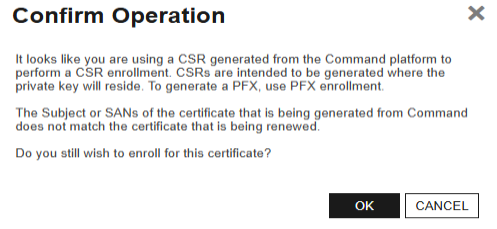
If turned on, enables the warning message that appears when a user attempts to enroll on the CSR Enrollment page using a CSR generated by Keyfactor Command using the CSR Generation page or equivalent API functionality. This setting is on by default. If Enable warning for CSR renewal with a Subject/SAN mismatch is also turned on, the CSR enrollment page will generate a warning on submission if the SANs/Subject are different from the SANs/Subject of the certificate that is being enrolled. This will appear in the same dialog popup as the warning that a CSR is generated from Keyfactor Command. Click OK on this popup to ignore the warning.
Figure 415: CSR Warning Message Note: If both this and the Enable warning for CSR renewal with a Subject/SAN mismatch setting are turned on, and both situations are triggered by the current enrollment, both messages will appear in the same message pop-up box.
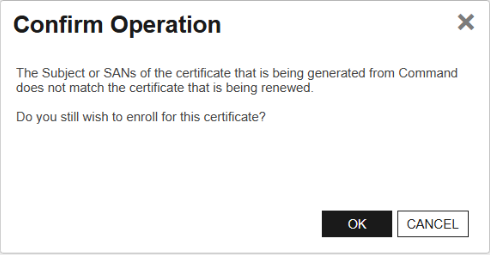
Figure 416: CSR Warning Message shown with CSR SAN error message also. |
| Enrollment | CSR | Enable warning for CSR renewal with a Subject/SAN mismatch |
If turned on, a warning appears when submitting a CSR enrollment if the subject or SANs differ from those of the certificate being renewed. Select OK to continue despite the warning. This setting is on by default. Note: See note above regarding how this and the Enable warning for CSR generated in Command setting respond together.
Figure 417: CSR SAN Warning Message |
| Enrollment | General | Allow Cryptographic Service Providers (CSPs) |
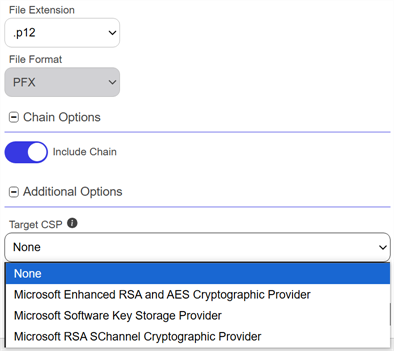
If turned on, allows selection of a cryptographic service provider (CSP) on the PFX Enrollment page and on the Certificate Search download dialog for certificates with a stored private key when a format of PFX is selected. See also Cryptographic Service Providers (CSPs). This setting is off by default. The Target CSP field on the PFX Enrollment page and Certificate Search download dialog is required if Allow Cryptographic Service Providers (CSPs) is toggled to on. |
| Enrollment | General | Allow Periods in Certificate Filenames |
If turned on, the file name generated for a certificate downloaded in PFX Enrollment, CSR Enrollment, or from the Certificate Search download dialog will include periods from the CN in the string. For example: server123.keyexample.com.pfx
If turned off, periods are removed from the CN when the filename is built. For example: server123keyexamplecom.pfx
This setting is on by default. |
| Enrollment | General | CA Template Cache Expiration (minutes) |
The lifetime in minutes for the cache of certificate templates retrieved from the CA and stored locally in SQL to reduce requests to the CA during enrollment. The cache is automatically updated every 5 minutes as long as the update task is enabled. Note: CAs and certificate templates that become unavailable in the environment will not appear as unavailable for enrollment in Keyfactor Command until this cache expires. Likewise, enrollment patterns for new certificate templates will not be available for enrollment until added to this cache.
|
| Enrollment | General | Cryptographic Service Providers (CSPs) |
A comma-seperated list of cryptographic service providers (CSPs) from which to select on the PFX Enrollment page and on the Certificate Search download dialog for certificates with a stored private key when a format of PFX is selected if Allow Cryptographic Service Providers (CSPs) is turned on. The selected CSP is associated with the certificate in the Public Key Cryptography Standard #12 (PKCS #12) key provider name attribute (OID 1.3.6.1.4.1.311.17.1). Note: This option is dependent on the Allow Cryptographic Service Providers (CSPs) option and is grayed out unless Allow Cryptographic Service Providers (CSPs) is enabled.
Figure 418: Target CSP Option in Certificate Download Note: Due to the large number of possible CSPs, the values entered in this field are not validated against known CSPs. Be sure to confirm that the data is entered correctly.
|
| Enrollment | General | Display CA Hostname |
If turned on, causes both the CA’s FQDN and logical name (for example, ca2.keyexample.com\Corp Issuing CA Two) to display in the CA dropdowns in the Keyfactor Command Management Portal interfaces. If turned off, only the CA’s logical name (for example, Corp Issuing CA Two) displays in these dropdowns. This setting is on by default. |
| Enrollment | General | Include Chain By Default | If turned on, the Include Chain option in PFX and CSR Enrollment and on the Certificate Search download dialog for select certificate formats is turned on by default. |
| Enrollment | General | Subject Format |
The format of the subject field that will be created for the certificates requested through the Keyfactor Command Management Portal if the enrollment pattern used for enrollment is set to supply in request. For example: CN={CN},E={E},O=Key Example\, Inc.,OU={OU},L=Chicago,ST=IL,C=US
The data in the subject format takes precedence over any data entered during PFX enrollment or supplied by enrollment defaults (see Enrollment Patterns - Enrollment Pattern: Enrollment Defaults Tab). For example, with the above subject format, the organization for certificates generated through PFX enrollment will always be Key Example, Inc. regardless of what is shown on the PFX enrollment page during enrollment. This setting applies to CSRs generated using the CSR generation method in the Keyfactor Command Management Portal and CSR and PFX enrollments done in the Keyfactor Command Management Portal. Data from the default subject does not display on the CSR or PFX enrollment page. To define defaults that will display in the PFX enrollment form (and can be modified by users), use enrollment defaults (see Enrollment Patterns - Enrollment Pattern: Enrollment Defaults Tab). Note: Backslashes are required before any commas embedded within values in the subject field (for example, O=Key Example\, Inc.). Quotation marks should not be used in the strings in the fields except in the case where these are part of the desired subject value, as they are processed as literal values.
Tip: The default subject format does not apply to enrollments done using the Keyfactor API.
|
| Enrollment | General | URL to Subscriber Terms |
The URL for a web page providing terms and conditions to which a user must agree before being allowed to enroll for a certificate if the CA setting of Require Subscriber Terms is turned on. For security, the user will receive a warning they will need to acknowledge to proceed. For visibility, the warning will display the domain the link is directed to. This setting applies only to the PFX Enrollment page. |
|
Enrollment |
PFX |
Allow Custom Friendly Name |
If turned on, includes the Custom Friendly Name option on the PFX Enrollment page and on the Certificate Search download dialog for certificates with a stored private key when a format of PFX is selected. This setting is off by default. See also Require Custom Friendly Name. |
|
Enrollment |
PFX |
Allow Custom Password |
If turned on, includes the Custom Password option and Password fields on the PFX Enrollment page and on the Certificate Search download dialog for certificates with a stored private key when a format of PFX is selected that allow for entry of a custom password for the certificate file. This setting is off by default. |
| Enrollment | PFX | Enable Legacy Encryption |
If turned on, includes the Use Legacy Encryption option on the PFX Enrollment page and the Certificate Search download dialog for certificates with a stored private key when a file extension that includes the private key is selected. The user has the choice to enable it or not. See also Use Legacy Encryption By Default. If turned off, the Use Legacy Encryption option does not appear. This setting is off by default. If the user turns on Use Legacy Encryption, the historical algorithm set (3DES/SHA1/RC2) is used for the downloaded certificate. If the user turns off Use Legacy Encryption, the newer algorithm set provided by Windows (AES256/SHA256/AES256) is used instead. Important: Both this and Use Legacy Encryption must be turned on if you plan to install the resulting PFX file on a server running Windows Server 2016.
|
| Enrollment | PFX | Include Private Key By Default | If turned on, sets the Include Private Key option on the Certificate Search download dialog on by default. |
|
Enrollment |
PFX |
Only use Alpha Numeric Chars |
If turned on, the one-time passwords generated to encrypt the certificate files downloaded on the PFX Enrollment page (if the user’s Active Directory password is not used) and the Certificate Search download dialog for certificates with a stored private key when a format of PFX is selected will contain just numbers and letters. If turned off, the passwords will contain numbers, letters and special characters. This setting is ignored in PFX Enrollment if Use Active Directory Password is turned on. This setting is on by default. |
|
Enrollment |
PFX |
Password Length |
The number of characters in the one-time auto-generated password—or the required number of characters in the custom password—to encrypt the certificate files downloaded on the PFX Enrollment page and the Certificate Search download dialog for certificates with a stored private key when a format of PFX is selected. The default is 12. This value will be displayed on the PFX Enrollment page and Certificate Search download dialog password section if Allow Custom Password is turned on. Important: Keyfactor highly recommends that you use strong passwords for any accounts or certificates related to Keyfactor Command and associated products, especially when these have elevated or administrative access. A strong password has at least 12 characters (more is better) and multiple character classes (lowercase letters, uppercase letters, numeral, and symbols). Ideally, each password would be randomly generated. Avoid password re-use.
|
|
Enrollment |
PFX |
Require Custom Friendly Name |
If turned on, requires the user to enter a custom friendly name for the certificate on the PFX Enrollment page and on the Certificate Search download dialog for certificates with a stored private key when a format of PFX is selected. This setting is off by default. Note: This option is dependent on the Allow Custom Friendly Name option and is inactive unless Allow Custom Friendly Name is turned on.
|
|
Enrollment |
PFX |
Use Active Directory Password |
If turned on, uses the user’s Active Directory password to encrypt the certificate files downloaded on the PFX Enrollment page. If turned off, generates a one-time password to encrypt the PFX file. This setting is off by default. This option does not apply to certificates downloaded through Certificate Search. Important: If you change this setting in the application settings you must also change the authentication method configured on the IIS virtual application KeyfactorPortal through the IIS Manager.
If you turn this option on, you should configure only Basic Authentication in IIS. If you turn this option off, you may configure either only Windows Authentication or both Basic Authentication and Windows Authentication (the default) in IIS. This is because when you authenticate to the Management Portal using integrated Windows authentication (Kerberos), Keyfactor Command does not have access to your credentials to apply your password to the PFX file. |
| Enrollment | PFX | Use Legacy Encryption By Default |
If turned on, the Use Legacy Encryption option is turned on by default on the PFX Enrollment and Certificate Search download dialog.. If turned off, the Use Legacy Encryption option is turned off by default. This setting is off by default. Note: This option is dependent on the Enable Legacy Encryption option and is inactive unless Enable Legacy Encryption is turned on.
|
Application Settings: Agents Tab
Configuration for orchestrator Keyfactor orchestrators perform a variety of functions, including managing certificate stores and SSH key stores. client certificate authentication has moved to the appsettings.json file for the web agent services application. As a result, the Always Use Certificate from Header application setting is no longer available in application settings.
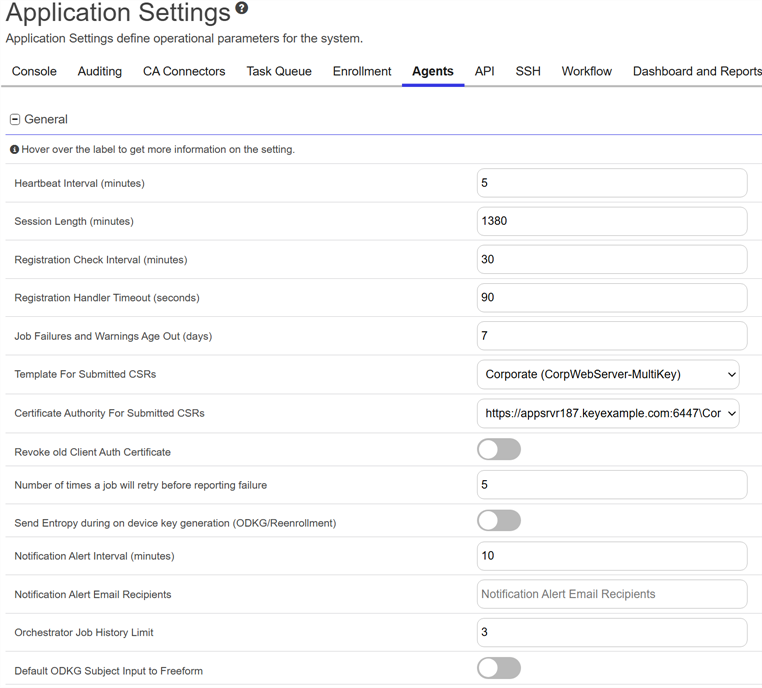
Figure 419: Agents Application Settings: General
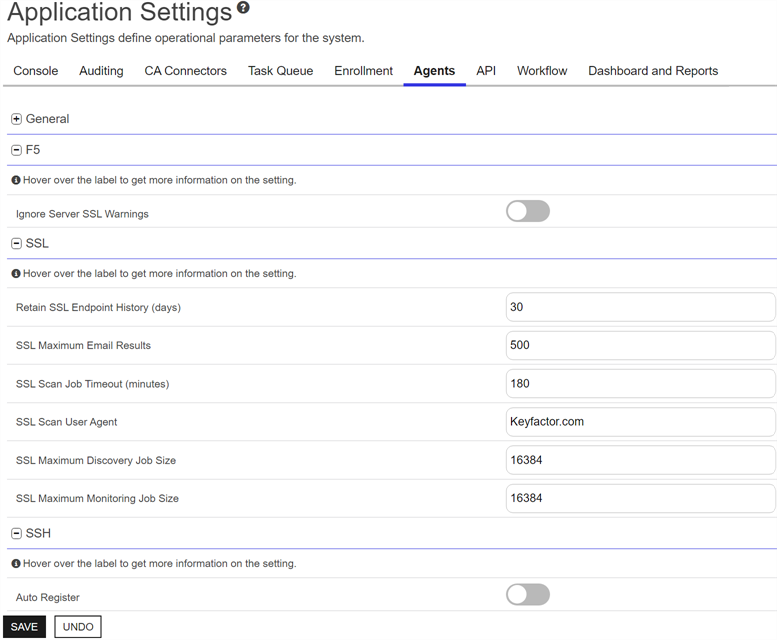
Figure 420: Agents Application Settings
Table 37: Agents Application Settings
|
Tab |
Section |
Field |
Description |
|---|---|---|---|
|
Agents |
F5 |
Ignore Server SSL Warnings |
If turned on, the orchestrator will connect to the F5 device using SSL even if it detects a problem with the certificate on the F5 device (for example, it doesn’t trust the issuer of the certificate because the certificate is self-signed). This option applies only to the F5 methods based on the F5 SOAP API (see Certificate Stores). The F5 methods based on the F5 iControl REST API automatically ignore SSL warnings without the need to set this option. This default is off. |
|
Agents |
General |
Certificate Authority For Submitted CSRs |
The certificate authority used for reenrollment requests made from the Certificate Stores page. See Certificate Store ODKG. |
| Agents | General | Default ODKG Subject Input to Freeform |
If turned on, the On-Device Key Generation page defaults the subject entry form to the Freeform format rather than the Strict format. If turned off, the page defaults to Strict format. This default is off. |
|
Agents |
General |
Heartbeat Interval (minutes) |
The frequency, in minutes, with which an orchestrator (for example, Keyfactor Universal Orchestrator, Keyfactor Java Agent) should query the Keyfactor Command orchestrator server for a status on the accuracy of its jobs list. The default is 5. |
|
Agents |
General |
Job Failures and Warnings Age Out (days) |
The number of days orchestrator job failures and warnings should be included in the count of failures on the orchestrator job history tab. The default is 7. |
|
Agents |
General |
Notification Alert Email Recipients | The email address(es) to receive notification. |
|
Agents |
General |
Notification Alert Interval (minutes) | The timer service has a job that runs based on this application setting. If an orchestrator has not checked in between job runs, an email alert is sent to the configured recipients stating which orchestrator has not been seen. |
| Agents | General | Number of times a job will retry before reporting failure |
The number of times an orchestrator job will attempt to retry running if it encounters an error before failing. The default is 5. |
| Agents | General | Orchestrator Job History Limit |
The maximum number of completed job history entries that Keyfactor Command retains for certain job types. When the limit is exceeded, Keyfactor Command deletes the oldest entries. The limit applies only to the following:
The limit does not apply to other job types, such as certificate store management, re-enrollment, and discovery jobs. Keyfactor Command does not remove history entries for these jobs based on this setting. The default is 3. |
|
Agents |
General |
Registration Check Interval (minutes) |
The frequency, in minutes, with which an orchestrator should check with the Keyfactor Command server to see if it has been approved as an orchestrator. The default is 30. |
|
Agents |
General |
Registration Handler Timeout (seconds) |
The maximum number of seconds an registration handler is allowed to attempt to run before being halted and declared to be deferred. The default is 90 for more recently installed systems. Keyfactor recommends using a value of at least 60 seconds. |
| Agents | General | Revoke old Client Auth Certificate |
If turned on, revokes the previous certificate used for orchestrator client certificate authentication after the certificate has successfully been renewed using the client certificate authentication renewal extension. This default is on. |
|
Agents |
General |
Send Entropy during on device key generation (ODKG/Reenrollment) |
If turned on, the configure call returns the property Entropy containing 2048 bytes during on device key generation (ODKG) for certificate store re-enrollment. This property is optional via this application setting. This default is off for upgrades and new installs. |
|
Agents |
General |
Session Length (minutes) |
The frequency, in minutes, with which an orchestrator renews its session with the Keyfactor Command server and obtains a new session token in the absence of any other reason for the orchestrator to renew the session token. The session token is also renewed when an orchestrator job changes (for example, an inventory schedule changes, a certificate is scheduled for addition to a certificate store, or a certificate is scheduled for removal from a store) or the orchestrator is restarted. The default is 1380. |
|
Agents |
General |
Template For Submitted CSRs |
The template used for reenrollment requests made from the Certificate Stores page. See Certificate Store ODKG. The template selected for this value must be available for enrollment against the CA listed in the Certificate Authority For Submitted CSRs setting. |
| Agents | SSH | Auto Register |
If turned on, orchestrators with SSH capabilities with auto-register in Keyfactor Command. This default is off. |
|
Agents |
SSL |
Retain SSL Endpoint History (days) |
The number of days old an endpoint history record must be before it is available for deletion by the endpoint history cleanup process. Endpoint history records older than this will be retained if they are the last records for the given endpoint. Both the last discovery and last monitoring records will be retained regardless of age. The default is 30. |
|
Agents |
SSL |
SSL Maximum Discovery Job Size |
The maximum number of endpoints for scanning that will be assigned to any one orchestrator for a given discovery scan job part. Together with the SSL Scan Job Timeout setting, this can be used to fine tune the running of SSL discovery scan jobs. The default is 16,384. Note: A change made to this setting takes effect with the next discovery scan job. It does not affect currently running jobs.
|
|
Agents |
SSL |
SSL Maximum Email Results |
The maximum number of results to display in an SSL monitoring results email message table of certificates that have expired or are expiring shortly. The default is 500. |
|
Agents |
SSL |
SSL Maximum Monitoring Job Size |
The maximum number of endpoints for scanning that will be assigned to any one orchestrator for a given monitoring scan job part. Together with the SSL Scan Job Timeout setting, this can be used to fine tune the running of SSL monitoring scan jobs. The default value is 16,384. Note: A change made to this setting takes effect with the next monitoring scan job. It does not affect currently running jobs.
|
|
Agents |
SSL |
SSL Scan Job Timeout (minutes) |
The maximum number of minutes any one orchestrator is allowed to attempt to run an SSL scan job before the job for that orchestrator is abandoned and given to the next orchestrator in the orchestrator pool to run (if applicable). The default is 180. Note: A change made to this setting takes effect immediately. It applies to currently running jobs as well as future jobs.
|
|
Agents |
SSL |
SSL Scan User Agent |
Defines what is sent to endpoints when Request Robots.txt is turned on for a SSL Network. |
Application Settings: API Tab
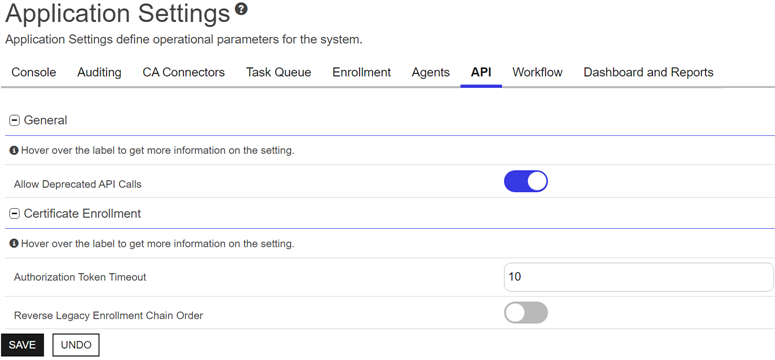
Figure 421: API Application Settings
Table 38: API Application Settings
|
Tab |
Section |
Field |
Description |
|---|---|---|---|
|
API |
Certificate Enrollment |
Authorization Token Timeout |
This is considered deprecated and may be removed in a future release. |
| API | Certificate Enrollment | Reverse Legacy Enrollment Chain Order |
This is considered deprecated and may be removed in a future release. |
|
API |
General |
Allow Deprecated API Calls |
If turned on, allow access to earlier versions of the API or other legacy API methods that have been replaced or updated. This can be useful for applications written against earlier versions of the API to retain operational functionality. In all other cases, this setting should be toggled to off, as the newer API methods have increased security measures. This default is ont. Note: When this option is off, requests that include X-Keyfactor-Requested-With: APIClient are rejected (403 Forbidden), while if the header is missing or null, GET requests proceed normally but POST/PUT requests are blocked by other middleware and return an error (status depends on that middleware).
For more information, see Endpoint Definition Versioning. |
Application Settings: SSH Tab
The SSH The SSH (secure shell) protocol provides for secure connections between computers. It provides several options for authentication, including public key, and protects the communications with strong encryption. tab only appears if your installation supports and includes.
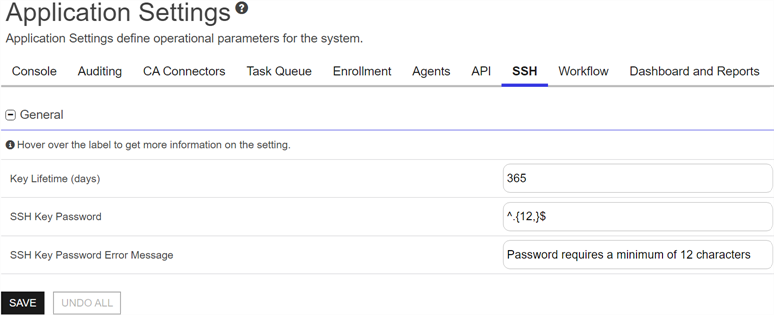
Figure 422: SSH Settings
Table 39: SSH Application Settings
|
Tab |
Section |
Field |
Description |
|---|---|---|---|
|
SSH |
General |
Key Lifetime (days) |
The number of days for which an SSH key generated through My SSH Key (see Generate a New SSH Key) or Service Account Keys (see Service Account Key Operations) is considered valid. The default is 365. |
| SSH | General | SSH Key Password |
The regular expression against which the password entered when creating, rotating or downloading keys for both user SSH keys (My SSH Key Operations) and service account SSH keys (Service Account Key Operations) will be validated. The default is a minimum of 12 characters configured as: ^.{12,}$
|
| SSH | General | SSH Key Password Error Message | The error message displayed to the user in the relevant SSH pages of the Keyfactor Command Management Portal when the password referenced does not match the regular expression defined for the password using the SSH Key Password setting. |
Application Settings: Workflow Tab
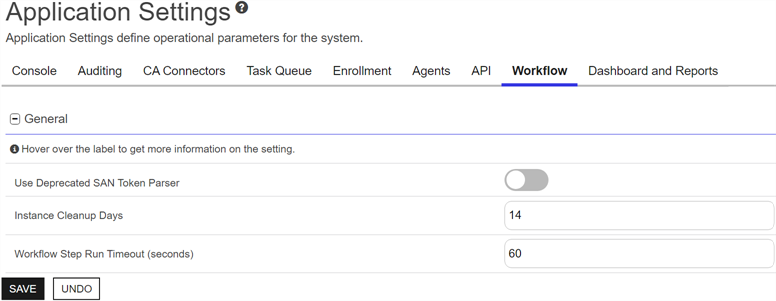
Figure 423: Workflow Settings
Table 40: Workflow Application Settings
Application Settings: Dashboard and Reports Tab
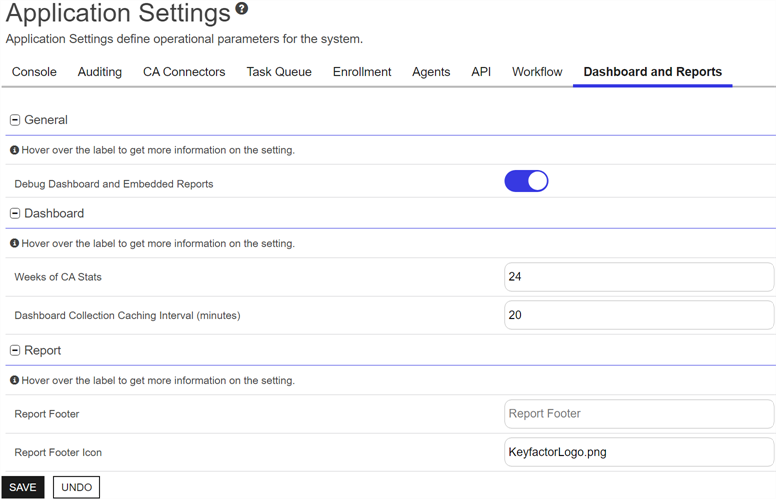
Figure 424: Dashboard and Reports Settings
Table 41: Dashboard and Reports Application Settings
|
Tab |
Section |
Field |
Description |
|---|---|---|---|
|
Console |
Dashboard |
Dashboard Collection Caching Interval (minutes) |
The number of minutes before the contents of collections with user-specific tokens should be considered out-of-date, and refreshed. The default is 10. |
|
Console |
Legacy Dashboard |
Weeks of CA Stats |
The number of weeks of CA data to include in the legacy dashboard graphs. The default is 24. |
|
Console |
General |
Debug Legacy Dashboard and Embedded Reports |
If turned on, a small debug icon ( If turned off, the debug icons and Enable Debug option do not appear. This default is off. Note: The debug icon only appears for users with full administrative permissions to the Keyfactor Command Management Portal. It will be hidden from users with more limited access even if enabled.
|
| Console | Legacy Report | Report Footer | A string that appears at the bottom of Logi-based reports either generated from the Management Portal or generated with the Legacy Report Manager in PDF format. The report footer appears only at the very end of the report, not at the foot of every page in the report. |
| Console | Legacy Report | Report Footer Icon | The file name of an image to be used at the bottom of each page of exported and scheduled PDF legacy reports. You can use this to replace the Keyfactor logo with a custom image on your reports. The image is auto set to a height of 30 px. This image should be placed in the _SupportFiles folder under the Logi folder (located at C:\Program Files\Keyfactor\Keyfactor Platform\Logi by default). |
 ) appears on each graph or chart on the legacy dashboard and can be clicked to see debug information about the graph or chart. Legacy dashboard panels with more than one graph or chart will show multiple debug icons. For legacy reports, turning this
  ) next to the
 You can also find Help in the Navigator The Navigator is the Keyfactor Command left-hand (newer versions) or top (older versions) navigation menu. Certificate collections and reports can be configured to be added to the menu using user-defined Show in Navigator settings.. From here you can choose to open either the Keyfactor Software & Documentation Portal at the home page or the Keyfactor API Endpoint Utility.
Keyfactor provides two sets of documentation: the On-Premises Documentation Suite and the Managed Services Documentation Suite. Which documentation set is accessed is determined by the Application Settings: On-Prem Documentation setting (see Application Settings: Console Tab).